

Getting Started
To connect Oplane MCP to your dev environment, visit your Oplane dashboard and follow the setup instructions for your specific environment. The setup process takes just a few minutes. Once connected, simply prompt your AI assistant with “Use Oplane” to get started. If you choose to create a new threat model, the entire workflow below runs automatically — from identifying use cases and threats to providing implementation advice and assessing your code.Supported Environments
Oplane works with any environment that supports the Model Context Protocol:- Any MCP-compatible tool
- Cursor
- GitHub Copilot
- Claude Code
Add the following to your
mcp.json configuration file:What You Can Do
Once connected, just tell your AI assistant what you want to do. Here are the workflows available:| Workflow | Example prompt |
|---|---|
| Guided walkthrough of threat modeling tools and workflows | Get started with Oplane |
| Analyse your codebase and suggest what to threat model | Suggest what to threat model with Oplane |
| Run a full automated threat modeling workflow end-to-end | Threat model my authentication changes with Oplane |
| Threat model a pull request by analysing the diff | Threat model this PR with Oplane |
| Get guidance for writing threat model descriptions | Help me describe my changes for Oplane |
| Security review of your AI coding agent’s permissions and access | Review my agent setup with Oplane |
| Analyse recent commits for security-relevant updates | Analyse my recent changes with Oplane |
| Analyse changes since a specific commit or tag | Analyse changes since last release with Oplane |
Tool Reference
These are the MCP tools available to your AI assistant. You don’t need to call them directly — they run automatically as part of the workflows above.| Tool | Description |
|---|---|
new_threatmodel | Create a new threat model with security requirements for your described changes. |
my_recent_threatmodels | List your recent threat models to review or continue working on them. |
get_threatmodel | Fetch the full content of a threat model by ID. |
get_requirement | Fetch the full details of a single security requirement by ID. |
request_implementation_advice | Get specific implementation guidance for a security requirement. |
update_implementation_state | Record your assessment of a requirement as implemented, not implemented, accepted risk, out of scope, or not applicable. |
update_requirement_severity | Adjust the severity of a security requirement with justification. |
add_threatmodel_comment | Add context to a threat model to refine or regenerate its requirements. |
search_workspaces | Search your workspaces by name to find where to create or view threat models. |
create_workspace | Create a new workspace in your organisation for organising threat models. |
create_security_rule | Create a keyword-matched security rule for your organisation. |
list_security_rules | List security rules for your organisation. |
get_security_rule | Fetch a specific security rule by ID. |
update_security_rule | Update an existing security rule. |
delete_security_rule | Delete a security rule. |
Choosing a Workspace
By default, threat models you create via MCP go to your personal workspace. To target a specific workspace, just mention it by name in your prompt:- “Use Oplane to threat model my auth changes in the workspace name workspace”
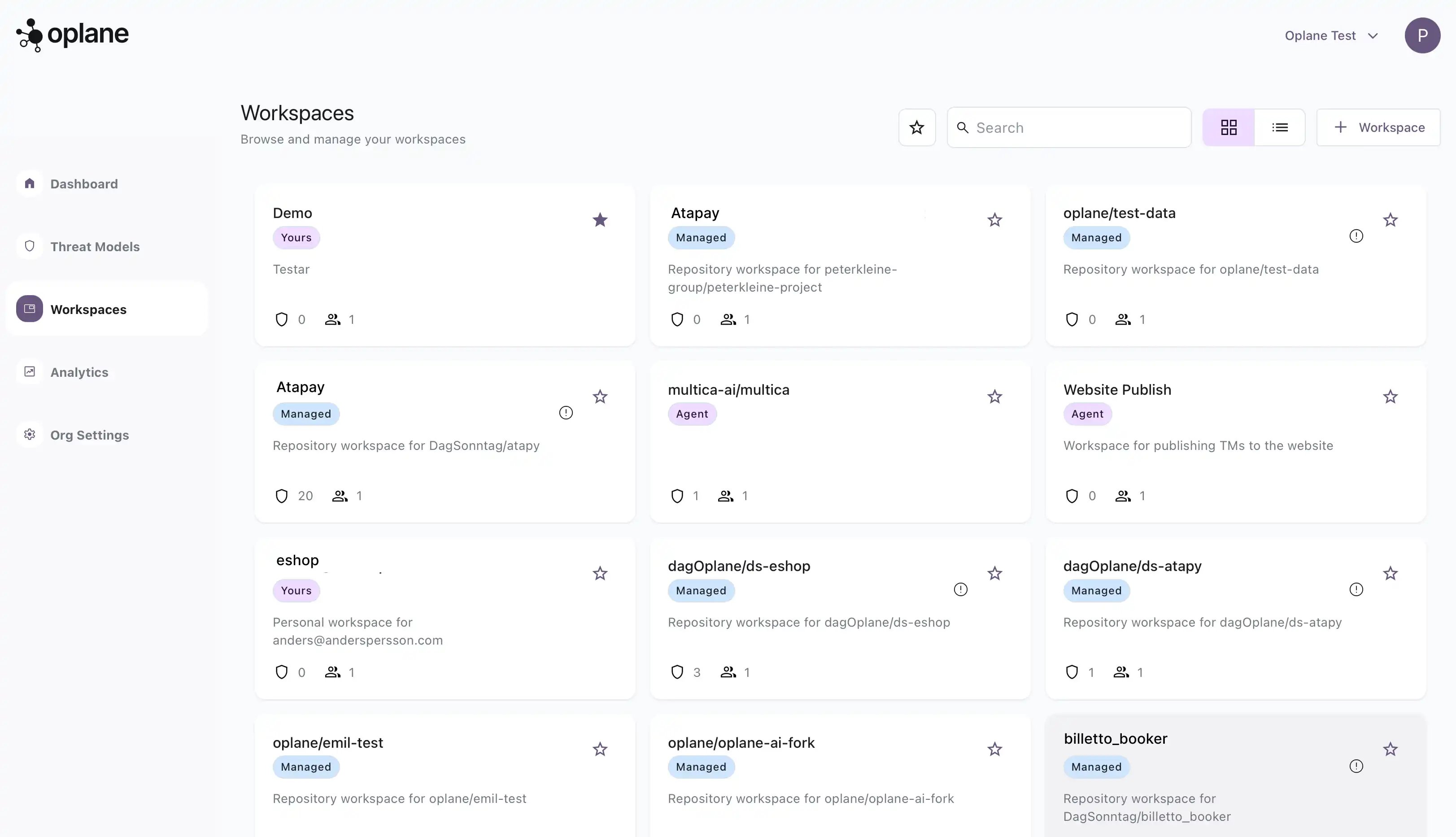
Learn about workspaces
Understand workspace types and how to create them.