

You need an Oplane account with at least one threat model and access to a Miro board where you want to visualize your security architecture.
Install the App
Add the Oplane app to your Miro team from the Miro Marketplace:- Open the Miro Marketplace and search for Oplane.
- Click Install and authorize the app for your Miro team.
- Once installed, the Oplane panel becomes available in any board via the apps toolbar on the left side.
Link Your Oplane Account
Before you can browse threat models, you need to link your Miro identity to your Oplane account. This is a one-time step per Miro user.Open the Oplane panel
In any Miro board, click the Oplane icon in the left-hand apps toolbar to open the panel.
Click Sign in
The panel shows a sign-in screen. Click the Sign in button to start the linking process.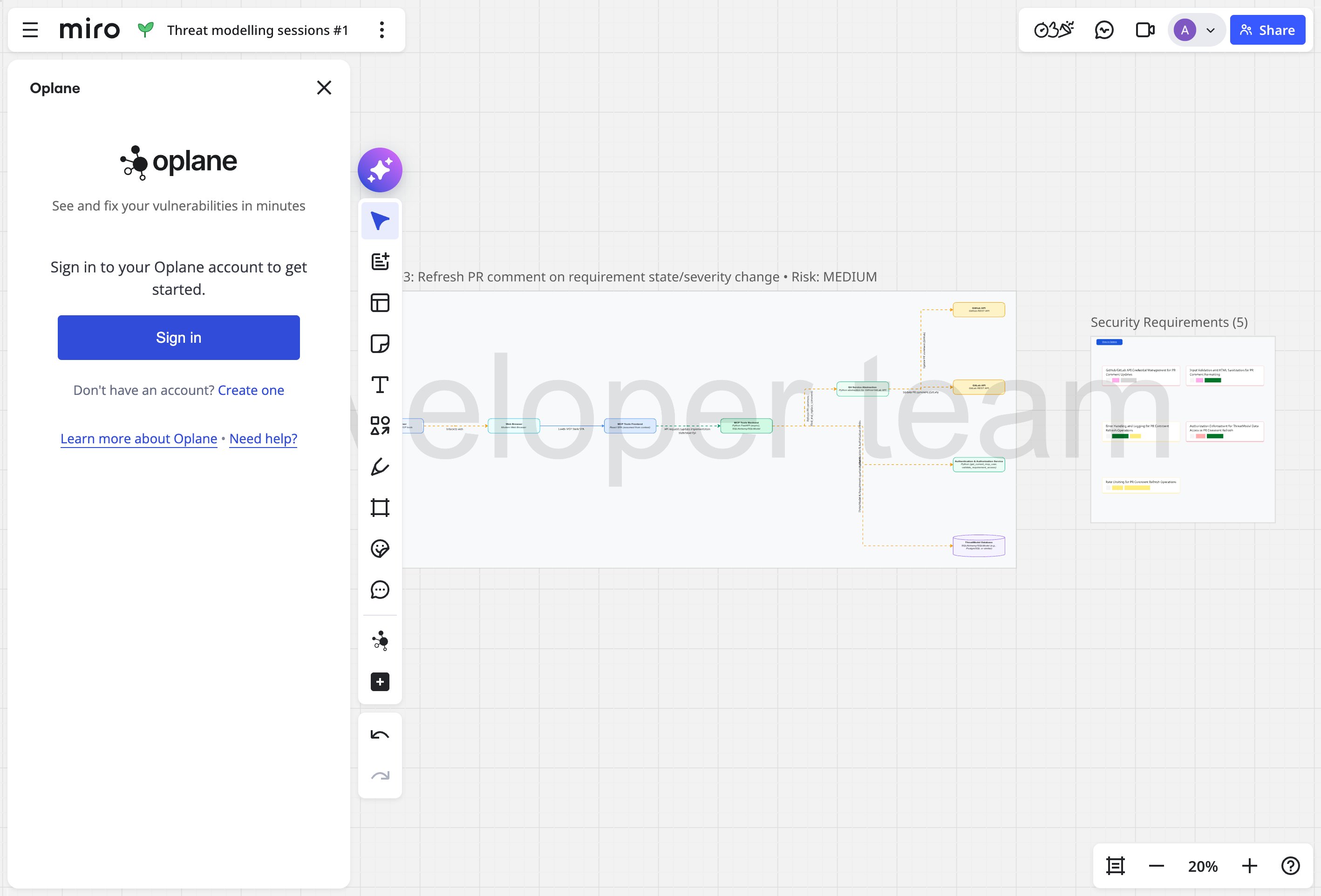
Authenticate in the popup
A popup window opens where you log in with your Oplane credentials. Once authenticated, the popup closes automatically.
Browse Threat Models
Once signed in, the panel shows your most recent threat models for the selected organization. You can switch organizations using the dropdown in the bottom toolbar.Recent threat models
The main panel displays up to 10 recent threat models with their title, workspace, last-updated date, and a risk-level badge (Critical, High, Medium, or Low). Click any threat model to import it directly onto the board.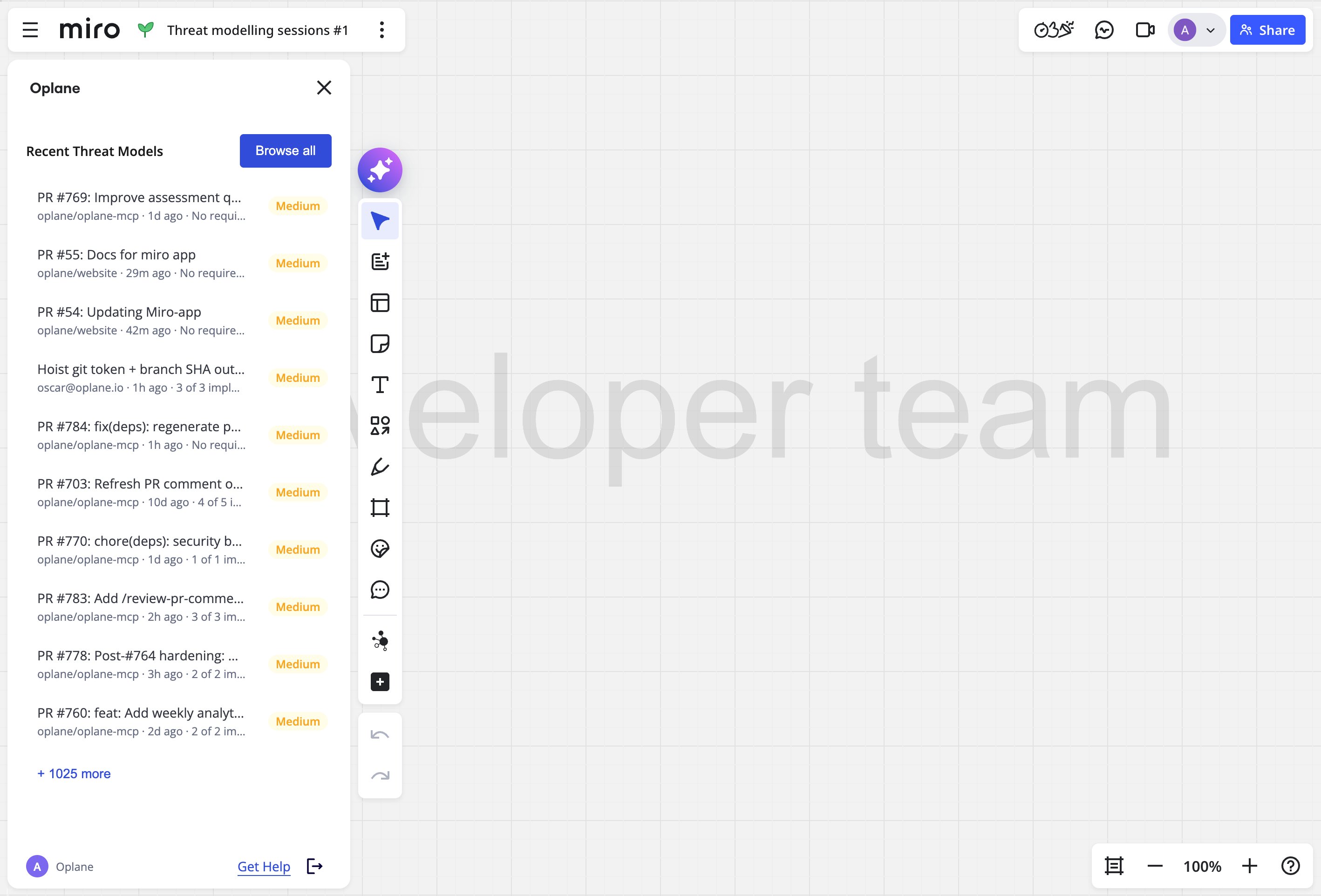
Browse all workspaces
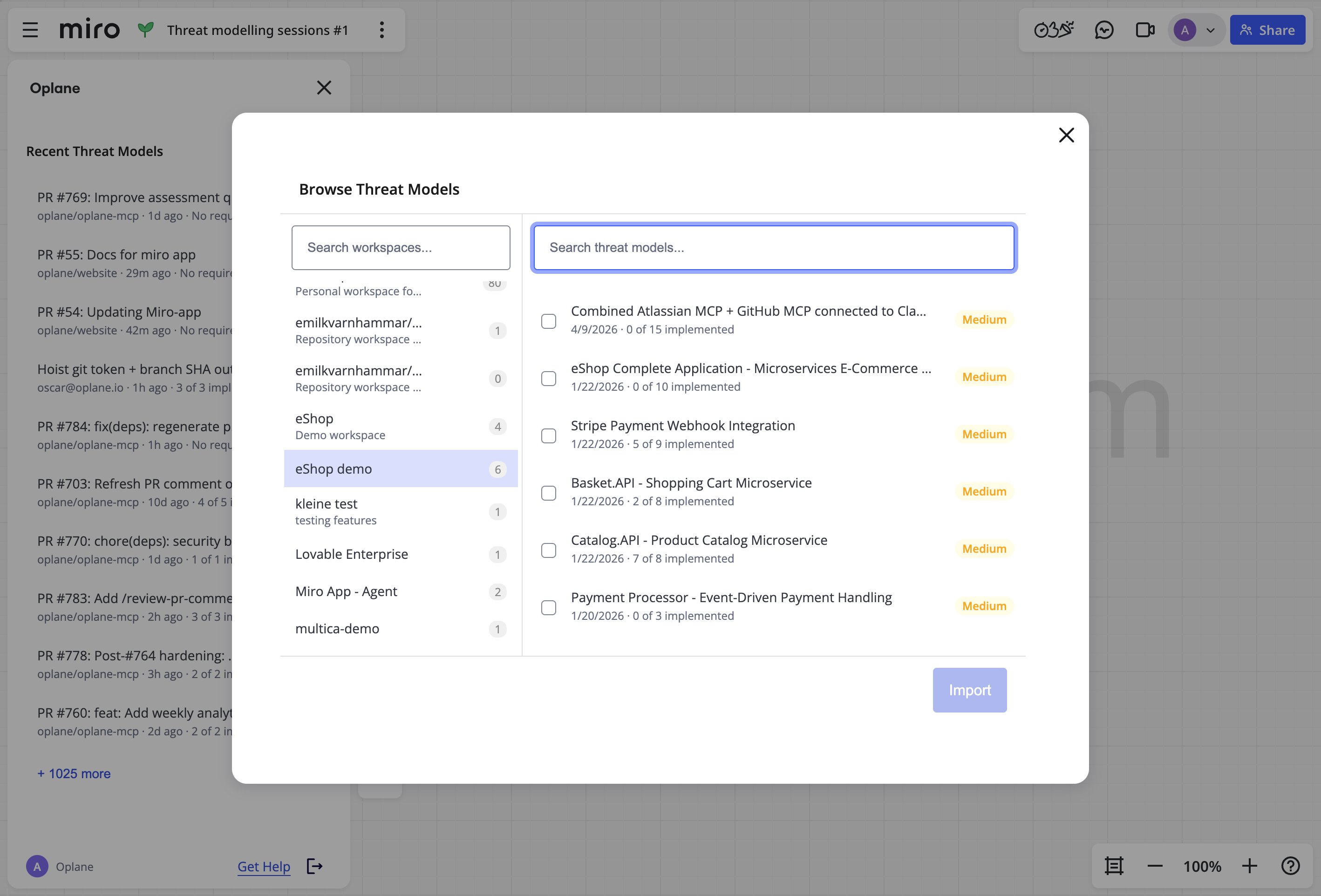
Click Browse all to open the full browse modal. This view gives you:- Left panel — A searchable list of all workspaces in your organization, each showing a threat model count.
- Right panel — The threat models within the selected workspace. Use the checkboxes to select multiple models for import.
Import to Board
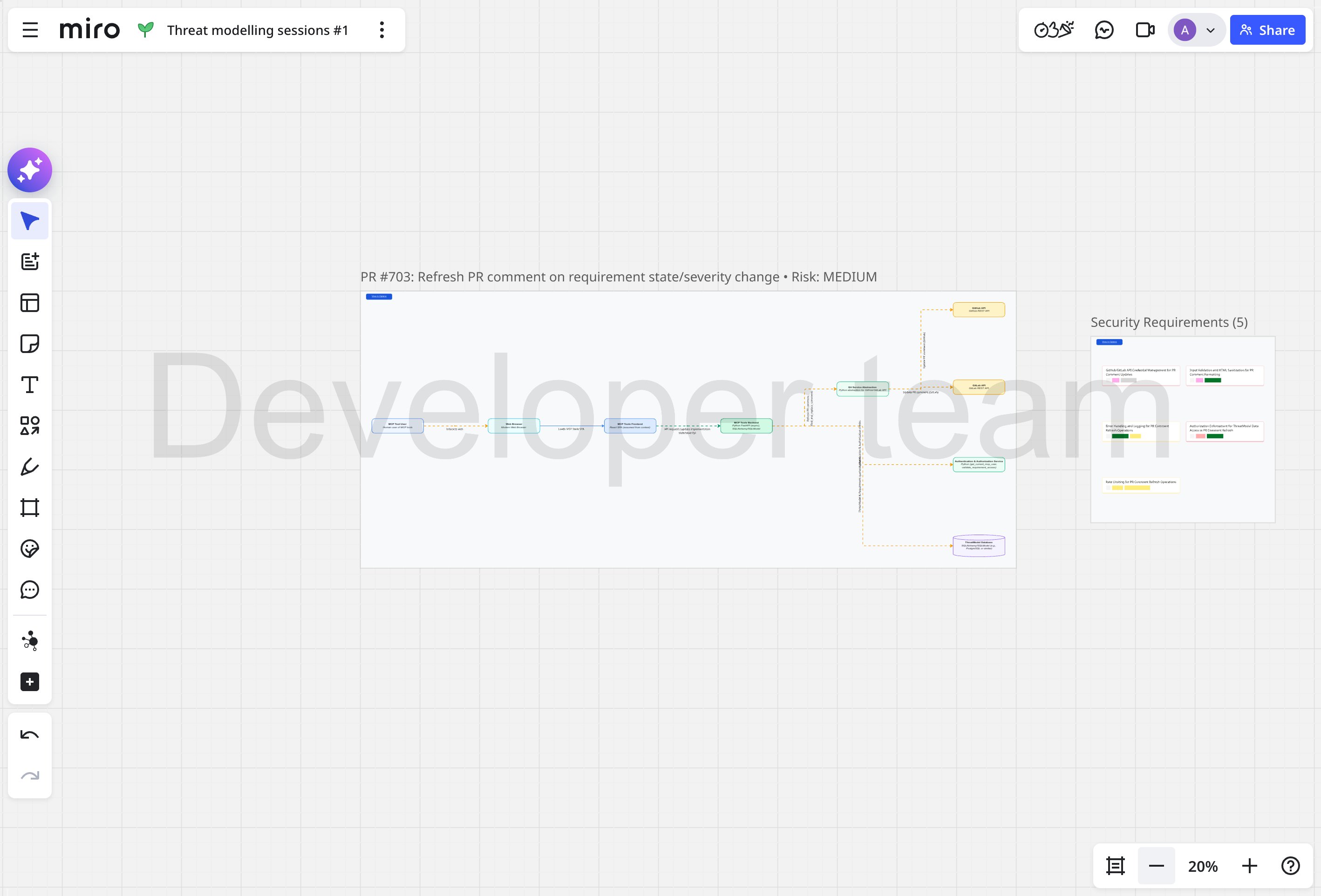
When you import a threat model, Oplane creates two visual sections on your Miro board:Architecture diagram
A framed diagram containing your system’s architecture rendered as Miro shapes and connectors:- Components are drawn as type-specific shapes — cylinders for databases, chevrons for message queues, rectangles for services, and more.
- Connectors between components represent data flows, styled to indicate encryption status and trust boundary crossings.
- A “View in Oplane” link lets you jump to the full threat model in the Oplane portal.
Security requirements
A second frame contains Miro cards for each security requirement from your threat model:- Each card shows the requirement title, severity, implementation status, description, and rationale.
- Color-coded tags indicate severity level (Critical, High, Medium, Low) and current state (e.g., Open, In Progress, Resolved).
Troubleshooting
Sign-in popup is blocked
Your browser may block the authentication popup. Allow popups formiro.com in your browser settings, then click Sign in again.
No threat models appear after signing in
Verify that you are looking at the correct organization using the dropdown in the bottom toolbar. If you recently created threat models, they may take a moment to appear — try closing and reopening the panel.”Browse all” shows empty workspaces
Workspaces without any threat models still appear in the list but show a count of zero. Select a workspace that contains threat models, or create one in the Oplane portal first.Import fails or nothing appears on the board
Ensure you have edit access to the Miro board. The app requires theboards:write permission to create shapes and cards. If you are a viewer on the board, ask the board owner to grant you editor access.